
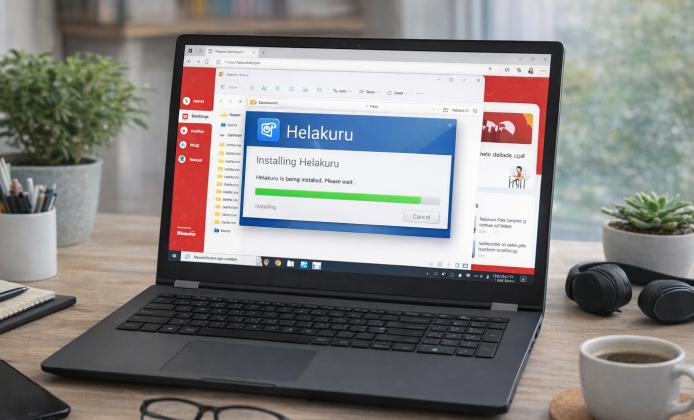
Helakuru is popular for Sinhala typing, smart suggestions, and day-to-day productivity tools, so getting it set up correctly matters from the start. This guide walks you through safe installation, first-time configuration, and troubleshooting steps you can use right away.
Before you begin, take a moment to confirm you have a stable internet connection, at least a few hundred megabytes of free storage, and your device updated to a recent system version. For most users, the Helakuru install process takes only a few minutes in real life.
Quick Safety Checklist Before Installing
- Use only official app stores or the developer’s official distribution links.
- Avoid “modded” packages that request unusual permissions.
- Review permissions and enable only what you need for typing features.
- Restart your device after installation if the keyboard does not appear immediately.
Tip: If your keyboard doesn’t show up after installation, the issue is usually in the device’s keyboard/language settings not the app itself.
How to Install Helakuru on Android
On Android, the easiest path is through the Google Play Store, where updates and security checks are handled automatically. When you start the Helakuru app install from a trusted listing, you also reduce the risk of broken versions and missing language components.
- Open our fan website.
- Tap Install and wait for the download to complete.
- Open the app and follow the onboarding prompts.
- Go to your phone’s Settings → System → Languages & input → On-screen keyboard.
- Enable Helakuru, then set it as the default keyboard.
- Open any chat app and test Sinhala typing.
If you want to install Helakuru with fewer interruptions, temporarily disable battery optimization for the setup phase, and turn it back on later if you prefer tighter background limits.
How to Install on iPhone (When Available)
On iOS devices, the process typically involves installing the app from the App Store (availability can vary by region), then enabling the keyboard in system settings. During the install Helakuru app flow, iOS may prompt you to allow keyboard access; read the message carefully and choose the level of access you’re comfortable with.
- Open our fan website.
- Install the app and open it once to complete initial setup.
- Go to Settings → General → Keyboard → Keyboards → Add New Keyboard.
- Select Helakuru, then place it in your preferred keyboard order.
- Test typing in Notes or Messages.
First-Time Setup for Better Typing
A clean Helakuru app installation is only the first step; the next step is tailoring the keyboard to your typing style. Spend two minutes on these settings and you’ll feel the difference immediately.
- Keyboard layout: choose the Sinhala layout you’re most comfortable with, and keep a secondary layout for quick switching if needed.
- Suggestions: enable predictive text if you want faster phrase completion.
- Theme and key size: adjust key height and spacing to reduce typos.
- Languages: keep English enabled for mixed typing in chats and emails.
Download Sources and What to Avoid
When you need to download and install Helakuru safely, stick to official app stores or the developer’s official website links, and avoid mirror sites that repackage apps. A mismatched version can lead to missing features, crashes, or a keyboard that fails to register in system settings.
Install on a Windows Computer
Typing with Helakuru on a computer usually requires an Android environment, such as an emulator, because the app is designed for mobile keyboards. With the right setup, you can install Helakuru on PC and use it for typing Sinhala in supported apps inside that Android environment.
- Install an Android emulator on Windows from our fan website.
- Sign in to the Play Store within the emulator.
- Search for Helakuru and install it from the official listing.
- Open Android settings inside the emulator and enable Helakuru as the default keyboard.
- Test typing in an app within the emulator (browser, notes, or chat tools).
Common Issues and Fixes
| Problem | Likely Cause | Fix |
|---|---|---|
| Keyboard doesn’t appear | Not enabled in system keyboard settings | Enable Helakuru in device keyboard list and set it as default |
| Suggestions are missing | Predictions disabled or data not downloaded | Turn on suggestions and allow the app to complete language components |
| App crashes on launch | Outdated OS or conflicting permissions | Update OS, reinstall, and review permissions |
| Typing is laggy | Low memory or heavy background apps | Close background apps, reduce animations, or adjust keyboard features |
Best Practices for Smooth Daily Use
- Switch keyboards with the system key (globe/keyboard icon) instead of reinstalling when something feels off.
- Keep auto-updates enabled to receive fixes and improvements.
- Back up important dictionaries or settings if the app provides export options.
- Use a short test phrase in Sinhala after updates to confirm everything is working.
FAQ
- Do I need special permissions? For standard typing, you mainly need keyboard enablement and basic access to function as an input method. Only grant additional access if you understand why it is requested and you actually need that feature.
- Why does the keyboard change back to another one? This can happen after system updates, battery optimization changes, or if another keyboard app sets itself as default. Re-select Helakuru as the default keyboard in your device settings.
- What’s the fastest way to verify it works? Open a notes app, type a short Sinhala sentence, and test switching between Sinhala and English. If the layout and suggestions behave as expected, you’re good to go.
Once setup is complete, the Helakuru app install becomes a one-time task, and most future improvements will arrive through regular updates rather than repeated configuration.


 Helakuru Install Guide: Set Up Sinhala Typing Fast on Any Device
 Helakuru on PC: Effortless Sinhala Typing for Windows
 Helakuru on Laptop: Fast, Accurate Sinhala Keyboard Setup
 Helakuru for Free: Predictive Sinhala Keyboard for Smooth Desktop Use
 What Is Helakuru and How to Use?
 Apps Similar to Helakuru